Research a question with AI Mode
On this page
This guide is for a question that takes more than one search, such as how heat pumps cope with winter or what changed in mortgage rates this month. You ask AI Mode, check the articles behind its answer, keep asking, and then read the coverage yourself on the News tab.
AI Mode is on the sites where AI answers are turned on; it is the first tab in the row of services.
#Ask a good first question
-
Select the AI Mode tab.
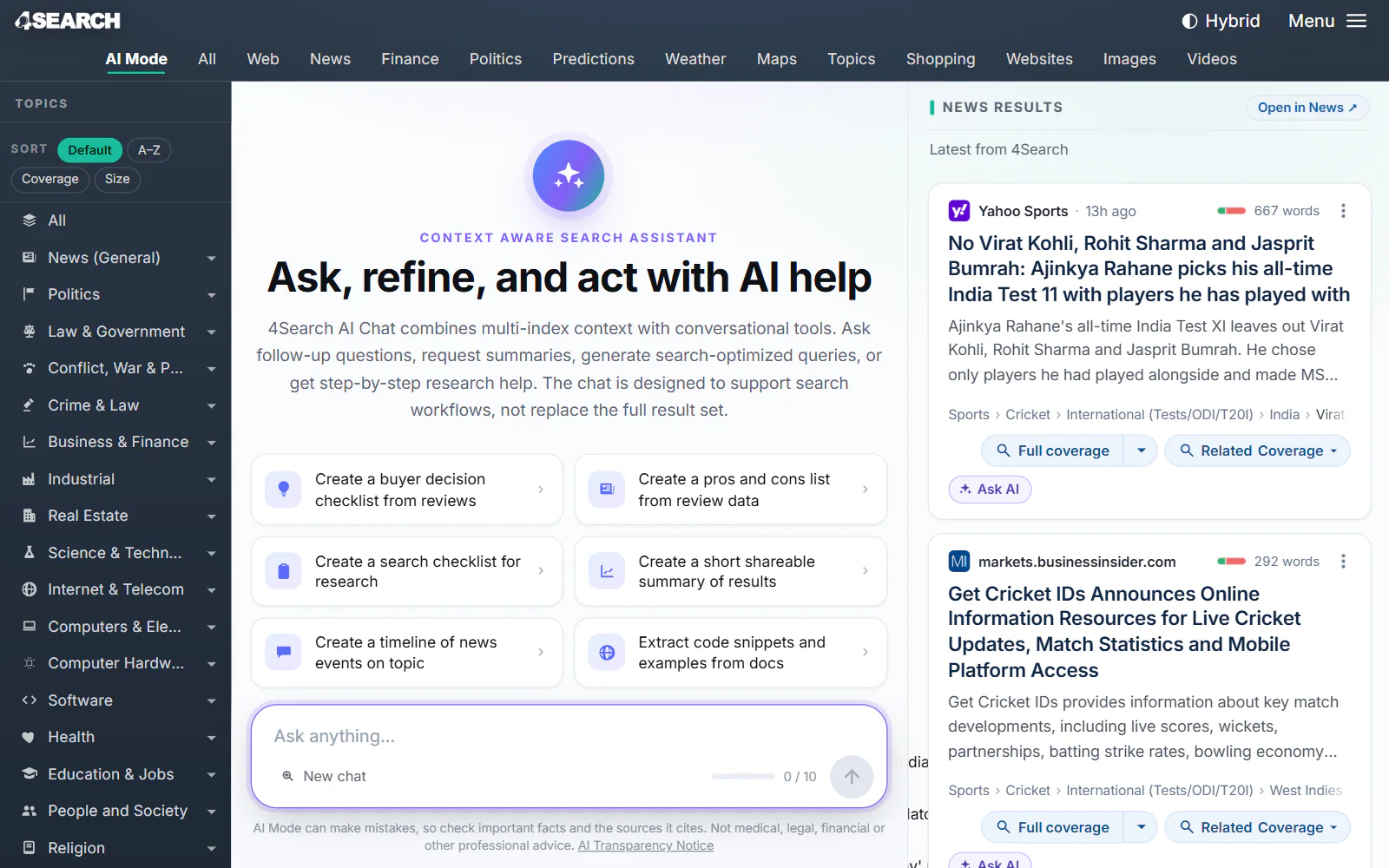
AI Mode before the first question. The starter questions differ from site to site.
- 1The AI Mode tab
- 2Starter questions
- 3Your message box
- 4Messages used in this chat
- 5News results beside the chat
-
Type a full question in the box that reads Ask anything…, with the place, the date or the people when they matter, for example
What has happened to 30-year mortgage rates this month? -
Press Enter. The first time, select Allow AI answers: nothing is sent until you do.
-
Watch it work: Searching the site's news, Reading the best articles, then Thinking, before the answer appears.
Asking for a format helps too: "in three bullet points", "as a table". See Get better answers.
#Check the sources
The small numbers in the answer are citations. Each points to one of the articles listed in the Sources box under the answer, which says how many it cited and how many it read, up to six.
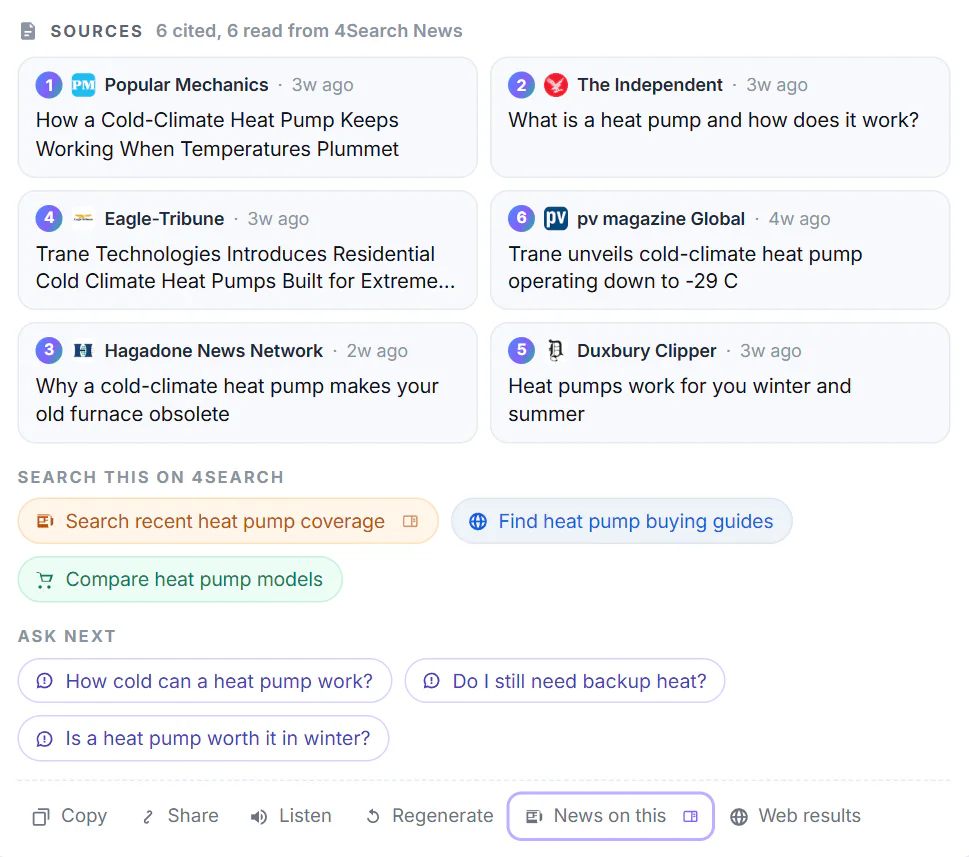
The Sources box under an answer, listed in the order the answer first cites them.
- 1How many articles were cited and read
- 2A source: select it to open the article
- 3Search the same words on this site
- 4Questions to ask next
- 5Copy, share, listen, regenerate
- Find the claim that matters to you and note its number.
- Select the number, or the source, to open the article. Does it say that, and how recent is it?
- Treat a sentence with no number with more care: it comes from the model's general knowledge, not from an article it read.
A citation tells you where a sentence came from, not that it is true. See Sources and citations.
#Ask follow-ups
Type the next question in the box, which now reads Ask a follow-up…, or select one under Ask next. A short follow-up such as What about in very cold places? is read with the conversation so far, and its search reuses words from your earlier question.
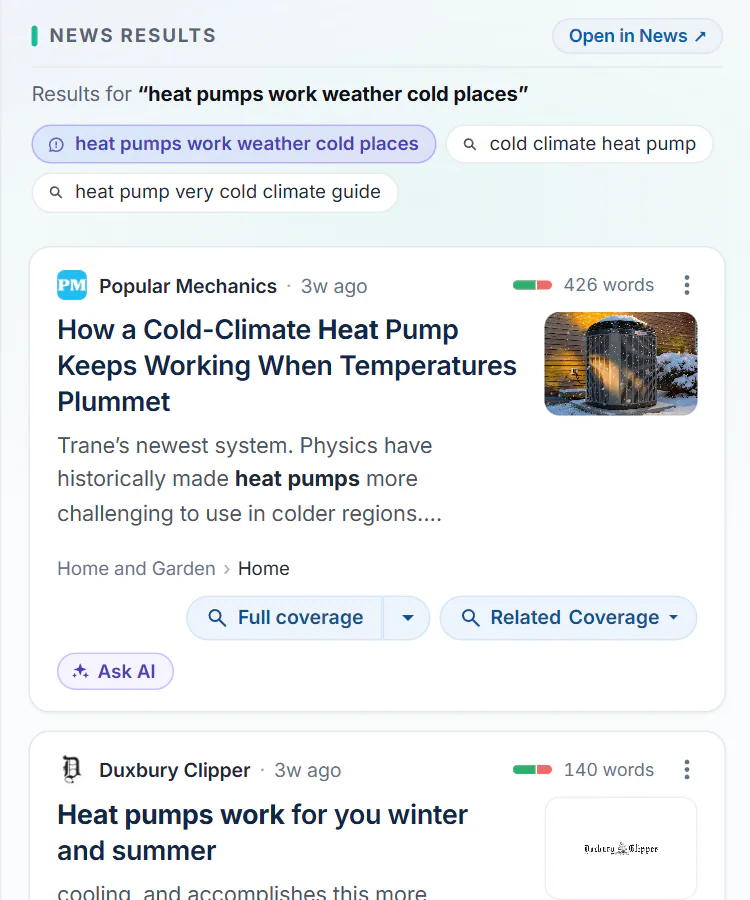
After a follow-up, the column beside the chat shows what was searched, and the other searches from this chat.
- 1What was searched: words from both questions
- 2The searches from this chat
- A chat holds 10 messages. The counter beside the send button shows how many you have used.
- To change the subject, ask a complete question, or select New chat.
- Before a new chat, select Save to keep the conversation as a file. The chat itself lives only in this browser tab.
See Follow-up questions and the results column.
#Go deeper on the News tab
The column beside the chat shows the News results for your last question. Select Open in News to run the same search on the full News page.
-
Choose how far back to look in the date menu, for example 7 days, or leave it on Auto.
-
Choose a length, such as 500+ words, to keep longer reads rather than briefs.
-
If you need an exact phrase or a name, switch the match menu to a (Text) option and put the phrase in quotes.

The filter row on the News tab: date, Published or Discovered, match, length and Sentiment.
- 1Date: how far back to look
- 2Published or Discovered
- 3Match: meaning, text or both
- 4Minimum words
- 5Sentiment
-
On a story that matters, select Full coverage to see how other outlets reported it.
See Narrow results with filters, Meaning, text or both and Check how a story is covered.
#Common questions
Can I rely on the answer?
Treat it as a starting point. AI answers can be wrong, out of date or incomplete, and say so. Read the sources for anything that matters, and for health, money, law or safety, ask a qualified professional.
Does AI Mode search the whole web?
Its answers are built from the site's own news index. Web results under an answer runs your question as a Web search.
Can I come back to my chat tomorrow?
Not on 4Search: the chat is gone when you close the tab. Select Save or Copy before you leave.